- Game Server Webhooks
- Game Server Embedded Bot
- Standalone Bot
Prerequisites
This guide will frequently refer to “IDs” for Discord channels, servers, etc. To get these, you should enable “Developer Mode” in Discord’s settings, then you can right click things to get their ID number.Game Server Webhooks
The simplest form of integration is provided by Discord Webhooks. It enables the game server to directly send messages to specific Discord channels, with minimal setup. This is currently used for the following features:- Automatic round status notifications (end, start).
- Includes pinging a role when the round has ended.
- Relaying in-game adminhelp messages.
Game Server Embedded Bot
This involves the game server hosting its own internal Discord bot, allowing more advanced features than simple webhooks can provide, though again with relatively little setup work. This is currently used for the following features:- Bi-directional OOC/Admin chat bridge
- More to come!
Overview
The game server is capable of hosting its own Discord bot directly via Discord.Net. This means you don’t need to run a separate program on your server to get this functionality, you only need to create a bot on Discord’s developer site and configure your server appropriately.Core setup
Bot creation
- Go to Discord’s Developer Site to register a new application.
- Give your bot a proper name, avatar, all that good stuff.
- You will most likely want to make your bot private, so that only you can add it to Discord communities. To do this:
- Go to “Installation” and set “Install Link” to “None.”
- Go to “Bot” and disable “Public Bot”
- Under “Bot”, enable “Server Members Intent” and “Message Content Intent”.
- Go to “OAuth” and generate an installation URL by ticking the following checkboxes and pressing copy:
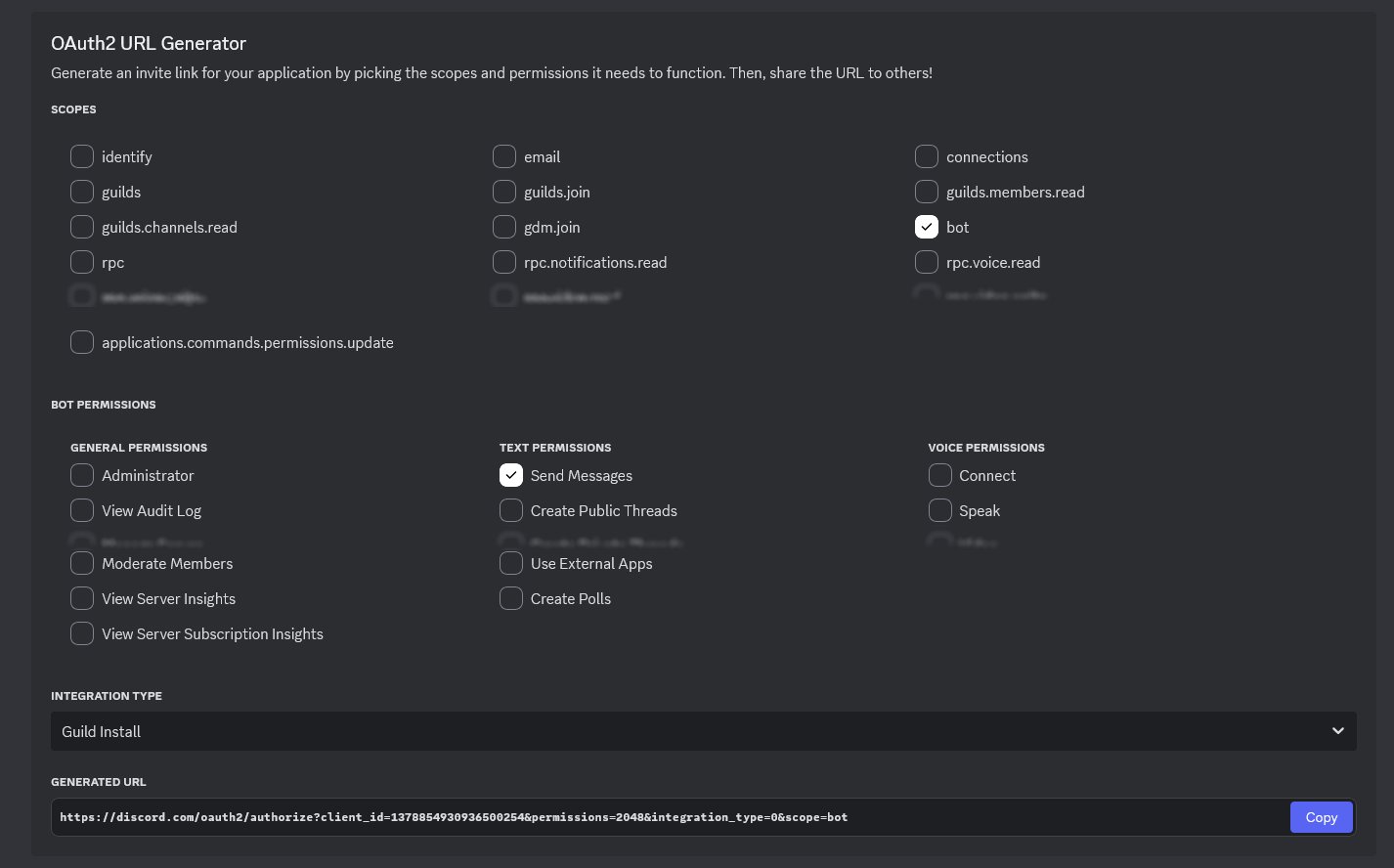
- Paste the generated URL into your browser to install the bot.
- Go to “Bot”, press “Reset Token” and copy the token it gives you.
Server configuration
Add the following to your server config file to set up the Discord bot:Chat relay (OOC/admin chat)
The Discord bot can automatically relay messages between Discord and in-game channels. This is supported for both OOC and admin chat. To configure, create the channels Discord-side, and make sure the bot has both Read Messages and Send Messages permission in them. Then add the following configuration to your server:Standalone Bot
This involves hosting a standalone Discord that works independent of the game servers. This is the functionality running on the official Discord’s Overseer bot, covering:- Game server status checking & automated updating of channel.
- Commands to restart/stop game servers.
- Automated message responses.
We only provide support for the official wizard-cogs, Support for Red itself or other cogs is not provided by us, please get support in the official RedBot Discord or the appropriate cog developer.
Setup
- Follow the Red Documentation on how to install and start the Base Red bot. Note that like an SS14 server. You need a computer that will stay turned on for your bot to function.
- If you have not already, give Red’s Getting started page a read.
- After you get your bot set up and invited to your server, you can now install the wizard-cogs repository to your bot. [p] in this case is your bots prefix you chose during redbot setup.
Hints
Game server status
Setup
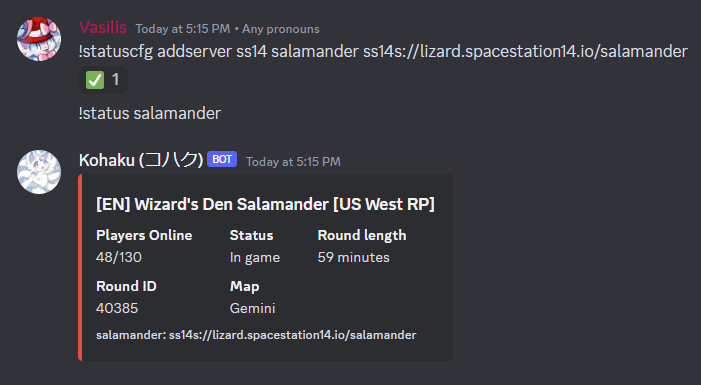
- Install
[p]cog install wizard-cogs gameserverstatus - Add your server
[p]statuscfg addserver ss14 <server-name> <address to your server> - Done! View your work with
[p]status <server-name>(Of course your server needs to be online)
Setting up automated watching
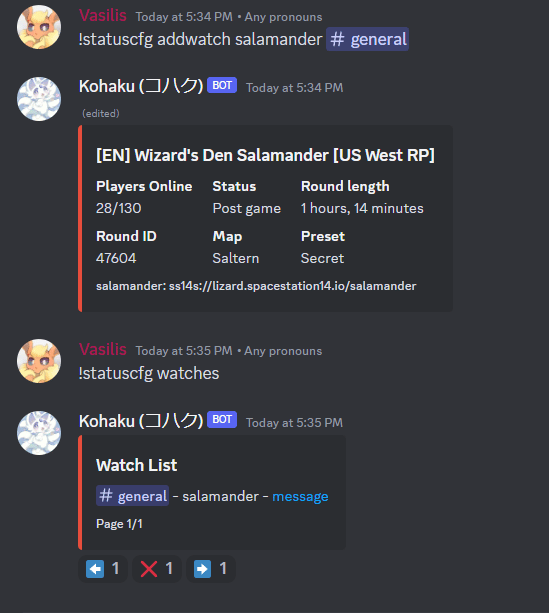
- After adding a server, use the following command
[p]statuscfg addwatch <server> <#channel> - As long as the bot has permissions to post in that channel. You will see the server status automaticly update in the message about every 2 seconds.
SS14.Watchdog Power actions
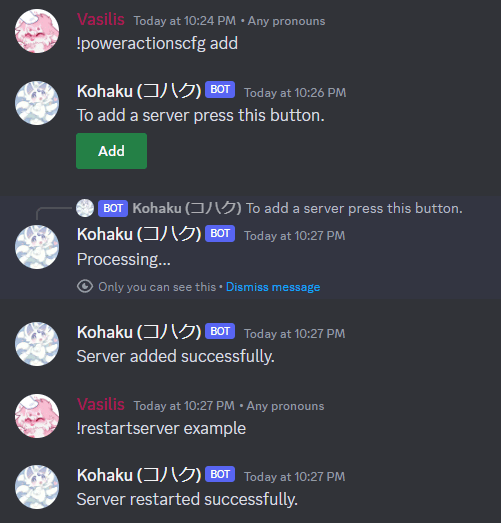
- Install
[p]cog install wizard-cogs poweractions - Setup your server by running
[p]poweractionscfg addand pressing the green add button. Only admins can run this command. Otherwise, the bot won’t respond. You will get a form you will be asked to fill in (Notice: Neither us nor the RedBot developers will receive this information. This information will only be stored by the bot and won’t be shown publicly.)
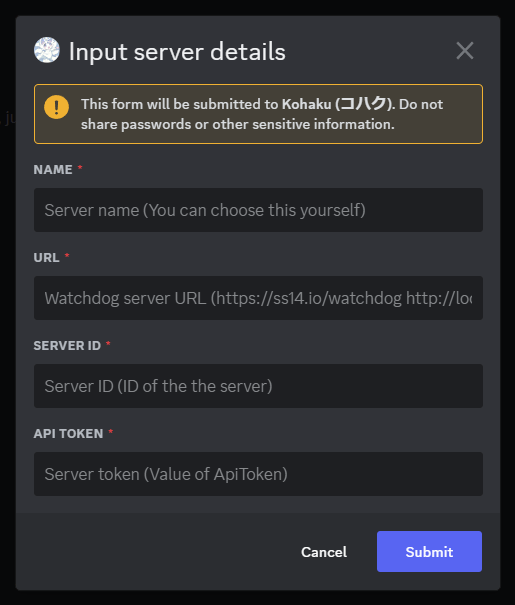
- Name: The server’s name, you will be providing this to the bot when restarting the server.
- URL: The URL to the watchdog instance, make sure to provide a URL accessible by the bot. Example: If you are exposing the watchdog’s API at ‘https://example.com/watchdog’ then what’s that you wanna input. You can probably use ‘localhost’ too if the bot is hosted on the same machine as the watchdog. The default watchdog port is
5000 - Server ID: The name of your server in your watchdog’s appsettings.yml that stores your server config. Not the “Name” config.
- API token: The ApiToken in your watchdogs configuration.
- After clicking submit if the bot reported success then you are done! Repeat for your other server.
Commands available
Make a server restart now:[p]restartserver <name>
Restart all servers the bot has configured:
[p]restartnetwork
This will ask for confirmation before working
Instruct the server to shutdown after the current round ends:
[p]stopserver <name>
Tell watchdog to prepare to update a server:
[p]updateserver <name>
GitHub Integration
Yet to be ported to redbot. You can use a github webhook in the meantime.Autoresponder (WYCI, Nanotrasen Block Game, Based)
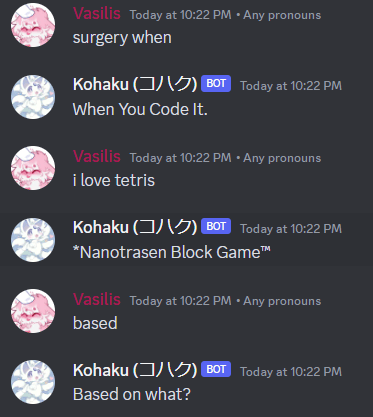
[p]cog install wizard-cogs autoresponder
Why… (Responds to users saying “Something when” with “When you code it”, “Tetris” with “Nanotrasen Block Game” and “Based” with “Based on what”. This is an inside joke inside Space Station 14 communities)