If you already know how to port forward: SS14 uses ports
1212/tcp and 1212/udp by default.Important Notes for basically everything here
VPN services
If you are using some form of VPN, probably all the info in this guide is irrelevant as the VPN necessarily changes the network of your computer. You can try to see if port forwarding is supported by your VPN service, in which case it will probably be pretty reliable and easy to do. Using a VPN service may also be the only option you have if your ISP otherwise makes port forwarding impossible. More information hereUPnP Port Forwarding
The first thing to try is to enable UPnP port forwarding in the server configuration. The game server will try to automatically port forward by contacting your router. This may not work on all routers, and on some other routers you may first need to enable UPnP in the settings. Though if it does work, this is by far the easiest method. See also: Config File Reference Openserver_config.toml in a text editor. You should be able to find a section that looks like this:
# in front of upnp like so:
Manual Port Forwarding
Disable UPnP from your config if you are going to do manual port forwarding. It may cause issues.
It is extremely common for your ISP to install a router for you. Because of this, “check your router’s manual” may instead involve “check your ISP’s help site or ask their support”.If you do have your own router, there may be somebody in your house that knows how to do this, so ask them.
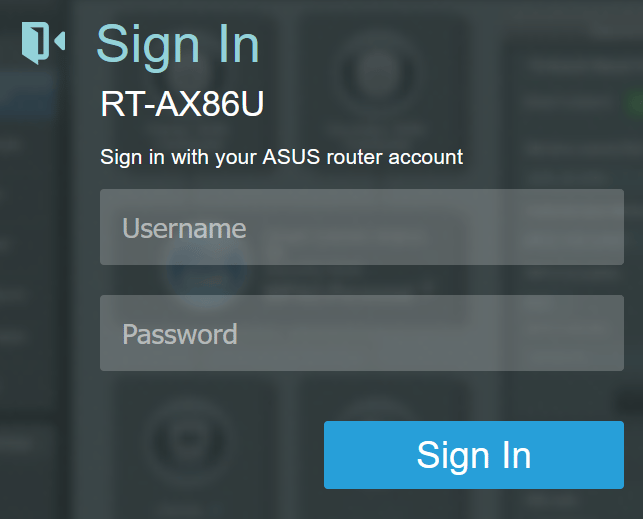
Step 1: Access your router settings
There are many different ways that your router allows you to access its settings. I will now list a couple possible ones:- By accessing the router via your web browser
- Using a standalone program (e.g. Apple Airport hardware)
- Opening your account settings on your ISP’s website
ipconfig. It will list the network interfaces of your PC, which look something like this:
192.168.xxx.xxx or 10.xxx.xxx.xx.
In this case, there are two important IP addresses: IPv4 Address is the address of your computer on your local network (you will need this later), and Default Gateway is the address of your router.
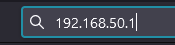
Grab the address of your router (the gateway address) and copy-paste it into your browser’s address bar:
- Checking the router unit to see if there’s a sticker or something
- Checking any documentation from your ISP
- Trying your wifi password
- Asking your family
- Trying common combinations like “admin” “admin”
Step 2: Port forward
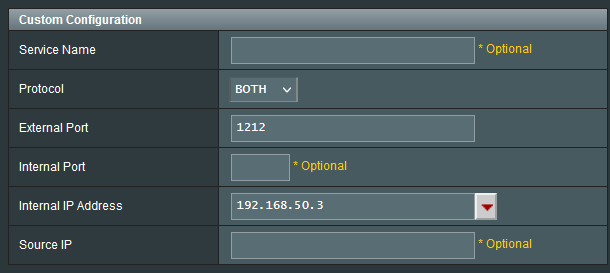
Assuming you managed to open your router’s settings and log in, you now need to port forward. Try to find anything that sounds like “port forward” in your router settings. This is far too specific between routers to even begin trying to guide you. When you do find it, you’ll want to look for some form of “add” button to add another port mapping. Exact menus vary, but the information you will probably need to enter is:- Protocol: both UDP and TCP. (If you can only do one at a time, add two separate mappings insetead)
- External Port: 1212
- Internal Address: your computer’s local network address from step 1
Check your computers firewall
If you are certain you did not mess up the above (or you are using your regular rented linux server), our last hope is to check for if your computer has it’s own firewall active and blocking the connection. If you are on MacOS or Linux you will have to do your own research. Especially on linux as there are many firewall programs. I will cover Windows here- Search for “Windows firewall” and open it
- At the top, click on “Action” —> “New rule”
- Change the option to “Port”
- Type “1212” as the port and make it a tcp rule (or whatever you set your port to if you changed it)
- Ensure “Allow the connection” is selected and that the rule applies everywhere (domain, private, public)
- Name it anything and do the steps again for udp instead.
ISP Fuckery
If you did the above steps correctly and your server still isn’t globally accessible, your ISP may be getting in the way. The most common reason for this is that your ISP uses Carrier-grade NAT (“CGNAT”) which makes port forwarding impossible. Another possible reason we’ve heard about is that certain network ports or protocols are automatically blocked by them. You maybe can try changing your server port to25565 which is what minecraft uses and may look less sus to your ISP if they are blocking certain ports.
You are probably best off contacting your ISP’s support or checking their site or networking forums in your country to see what you can figure out. Some ISPs may allow exemptions to CGNAT, others may do it but will charge you for it, and so on.
So what now?
If you were reading to host a public server (public on the hub for random players to join) we suggest you purchase hosting, these alternatives are only suitable for people interested in hosting for friends.We do not endorse or maintain any of these programs.If you encounter any issues with any of them please contact the developers of the program instead of us.These are just suggestions by us that we have seen work.
Tunneling services (Like playit.gg, localtonet)
As of 2026-05-26 I discovered that playit is restricting the use of tcp + udp for their tunnels for free users.I was instead gonna document localtonet, but they have a 1GB monthly data limit. Which with my napkin math will get quickly spent (Like about 1 hour worth of time with 10 players. Or like 5 hours with 2 players… per month.) so I decided not to because this is probably not gonna be enough for a lot of players to find enjoyable.I will be keeping the tutorial here just in case, but do note this method will probably no longer work (for free) unless you are willing to pay… and if you are willing to pay honestly just rent out a linux server and host the server there instead by that point.
- Download and signup for playit.gg (Guest account won’t work) and setup the program with their instructions.
- When asked for a tunnel type, switch it to “TCP+UDP”
- When asked for a “Local port” type your server’s port, in most cases
1212. Then “Add tunnel” - Once the tunnel initializes, you should have a domain and IP. This is what you share with your friends, start your server if you have not already. They should be able to connect with either the domain or the IP they give you. The domain will also be in the console of the playit.gg app for quick copying.