The information in this page is likely outdated and may no longer be relevant.
Code completion can help a lot with finding what controls and attributes you can use
The Control
The game’s UI is made up of a ton of Controls. Each Control is one element of the UI system. Controls have various functions, some being obvious things like text labels and buttons, while others serve to lay stuff out automatically.
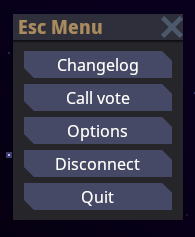
BoxContainer to automatically lay the buttons out on top of eachother.
The actual layout XAML code for this UI looks like this (at the time of writing). You don’t have to understand exactly what’s going on here yet, of course:
DefaultWindow contains a BoxContainer to automatically lay the Buttons out vertically, and the Buttons contain a Label to show the text (the Label is automatically created to make the code shorter). In this way, the UI controls effectively form a tree:
Core Layout
Laying your controls out properly is perhaps one of the most important parts of UI. Laying out controls manually (as in, specifying positions and sizes manually) is annoying, problematic for resizing, etc… As such, the UI system is designed so that you can easily compose layout based on helper controls, such as the aforementionedBoxContainer.
This section describes how layout works for a single control. Below sections will go into details for layout controls such as BoxContainer.
All controls are effectively laid out as a bunch of rectangles. They have a size and a position relative to their parent. In the next screenshot you can see the effective rectangle of one of these buttons:
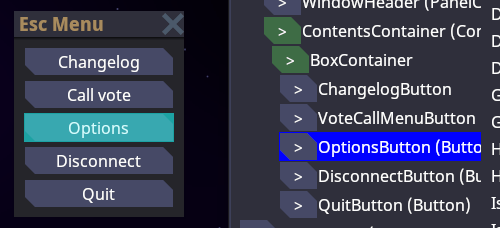
devwindow UI viewer, type devwindow in the game console and go to the UI tab.)
And the parent BoxContainer which contains all the buttons:
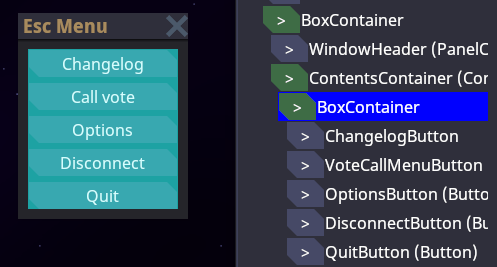
DesiredSize. This is effectively the “minimum” space that a control wants to be able to lay itself out correctly without being cut off or such. Controls calculate this based on their contents, and these contents can of course include other controls, depending on which control we’re talking about. Some examples:
Label(a text label): the actual text size laid out.TextureRect(an image): assuming it can’t shrink, the size of the image.BoxContainer: the combined size of its contents, laid out sequentially.Button: the size of its contents + some padding for the button’s border.- base
Controlitself: the maximum of the sizes of its children
DesiredSize is only the minimum. In practice controls often get much more space than they “need”. Even in the escape menu there is tons of spare horizontal space inside the buttons, but the text itself doesn’t take the full width. Conceptually, while the UI system is laying out controls, the parent control (such as BoxContainer) arranges or gives space to its child controls. The controls then choose how they should occupy this space themselves. In the case of the escape menu, BoxContainer gives the full width to the control. The default behavior of most controls is to stretch to fill that space. The result is that the button “stretches” to fit the full width of the menu.
This behavior is governed by HorizontalAlignment and VerticalAlignment on the control, which effectively says “what do we do if we have more space than we need”. The default for both is Stretch, which is “take as much space as we can”. You can also Center which centers the control while keeping it as small as possible. And there’s also Left/Top and Right/Bottom to align the control to one side. Let’s try messing around with the HorizontalAlignment on various things in the escape menu:
HorizontalAlignment="Center" on each of the buttons individually:
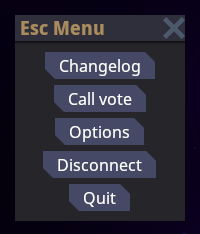
XAML Code (click to expand)
XAML Code (click to expand)
HorizontalAlignment="Left" on each of the buttons individually:
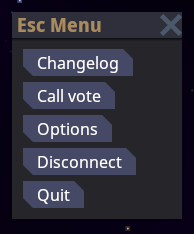
XAML Code (click to expand)
XAML Code (click to expand)
HorizontalAlignment="Left" only on the BoxContainer itself. This means we are changing the BoxContainer itself to shrink, so it takes the width of the largest button. All the other buttons still expand to fill the space of the BoxContainer, so they all have the same size, that of the largest button:
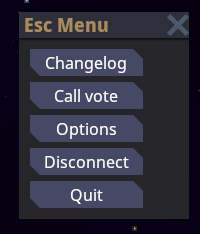
XAML Code (click to expand)
XAML Code (click to expand)
Note: to actually make this example work, we need to move the
MinSize declaration onto a containing control. In the normal menu, the BoxContainer’s MinWidth is solely responsible for the width of the menu, so it itself has no extra space. Wrapping it in a parent control which has the MinSize fixes that.MinSize/MinWidth/MinHeight: Allows you to set a custom minimum size for the control, which is used on top of the existing size calculated based on children.MaxSize/MaxWidth/MaxHeight: Allows you to limit the size of a control.SetSize/SetWidth/SetHeight: Allows you to set a specific size for a control.Margin: Allows you to set a margin of blank space around a control.
Common Attributes
These attributes are present on most layout controls.Margin
Sets the margin of the control this attribute is put on. Example:Margin="<uniform>"Margin="<horizontal> <vertical>"Margin="<left> <top> <right> <bottom>"
Horizontal/VerticalExpand
Controls have two rather confusing properties. We already went over theHorizontalAlignment and VerticalAlignment above, but there’s another similar-sounding property: HorizontalExpand and VerticalExpand. These properties are very weird. Truth be told, if the UI system was more well-developed, these wouldn’t be here in the first place. People often use them without understanding what they actually do, so read up, nerd.
These two properties influence the layout of your control only in a few specific containers: BoxContainer, SplitContainer, and GridContainer. If your controls is not in one of these and you set *Expand, your code is automatically wrong.
So what does it do exactly? I’ll use BoxContainer as an example. Suppose I edit the escape menu so that there’s more space than the buttons need:
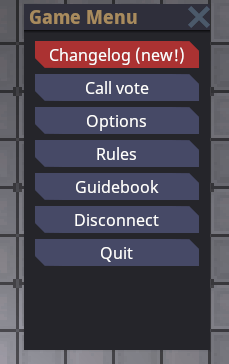
XAML Code (click to expand)
XAML Code (click to expand)
Oh look, the escape menu has grown since the last time I edited this guide!
BoxContainer always gives its children as little space as necessary along its primary axis. This means that unused space is not filled! In the example above, we could make the window horizontally bigger, and the buttons would get wider. But giving the window vertically bigger just adds empty space.
This is where VerticalExpand comes in. If we give a control VerticalExpand="True", watch what happens:
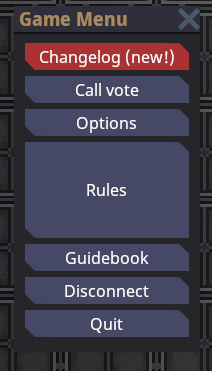
XAML Code (click to expand)
XAML Code (click to expand)
BoxContainer is actually giving the rest of the space to the rules button. This is what Expand does.
You can give multiple controls Expand, and then the expansion will be proportionate to their SizeFlagsStretchRatio property:
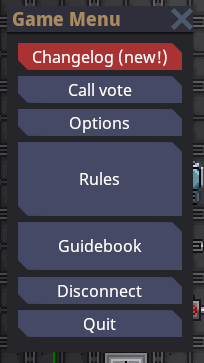
XAML Code (click to expand)
XAML Code (click to expand)
Horizontal/VerticalAlignment and such changes the behavior of the control within its alloted space. Horizontal/VerticalExpand changes how the parent container decides how much space to give in the first place. Only select parent containers respect Horizontal/VerticalExpand.
XAML UI
Complex UIs can involve quite a lot of controls. Previously, most UIs were made by manually constructing these deep control trees in C#. This sucked. Nowadays we have The Technology(tm) and thanks to XamlUI, things don’t suck as much. Yay! XAML allows you to specify control trees in, well, XML. To recap, if you somehow skipped the top half of this page, it looks something like this:Syntax
At its core, XAML is just a fancy way to specify .NET objects in XML. Just most XAML frameworks (like ours) wrap it in a bunch of stuff to make it particularly suited for UI stuff. This makes it both relatively straightforward to map to anything, but also not exactly the concise or pleasing way to write UI code in more complex scenarios. Oh well.XML Basics
You can skip this bit if you have the most basic understanding of what XML is. Since basically every programmer knows HTML nowadays and that’s almost the same thing you probably already do. But anyways here goes: Your XML document is made up of a bunch of tags. This is an example of a tag:/>) which can contain no content. You can also make an open tag like so:
<br>, <p>, …), it’s much more consistent.
The contents of the tag go between the two bits there. Contents can be other tags or simply plain text (but plain text currently is not used in our engine):
Namespaces
Because XAML maps to actual .NET types (mostly), you need to actually import namespaces for it to resolve types. This is done by putting anxmlns attribute on the top tag in the document. xmlns="..." is the namespace used by default (e.g. <Button>) whereas xmlns:foo="..." allows importing additional namespaces that can be imported by prefixing a tag name with foo:, like so: <foo:Button>. These namespaces are not specified by plain C# namespace-names, it’s kinda complicated and involves URIs and stuff. Just leave xmlns="https://spacestation14.io" for the engine namespace and import the rest by copy pasting and basic pattern recognition I guess. You can see some examples I pulled out of a random XAML file:
Core Syntax
Every XML tag represents one object. So<Button /> just makes an empty, simple Robust.Client.UserInterface.Controls.Button the same way you would do new Button(). You can specify properties on the made objects with attributes on the tag, like so:
Vector2 and Thickness (used by margins) it’s space-separated numbers.
You may have also noticed the funny {Loc 'ui-...'} thing. This is called a markup extension. The short version is that they’re magic you can put in properties to do special stuff. In this case, {Loc 'key'} looks up a localized string.
Usage
To use XAML for a new control, you need to make a file calledFooControl.xaml, and then put the corresponding C# code in FooControl.xaml.cs. At a minimum, all you need to do is call RobustXamlLoader.Load(this); somewhere in the object’s constructor. If you want support for code-behind (Name properties on declared controls) you will need to make the C# class partial and add the [GenerateTypedNameReferences] attribute to it. A complete example looks like so:
Sometimes the code-behind properties (
PressButton in the above example) can fail to be generated by your IDE. At the time of writing it’s been a year and source generators are still very janky, hooray. Generally, reloading the project or building will probably fix it.Rider 2022.1 EAP3 seems to have fixed many of these issues finally. Make sure to be up to date.x:Class declaration like so:
UI Controllers
UI controllers are responsible for creating, updating and removing controls. Entity systems must not do this themselves.Any data that they use must be obtained by binding their methods to system events (see example below) or by calling methods on IoC services, such as IPlayerManager.
To create a new UI controller, make a new class that inherits
UIController. This type will then be instantiated automatically as a singleton by the UserInterfaceManager.Widgets are retrieved within UI controllers by calling
UIManager.GetActiveUIWidgetOrNull<T>(), where T is a widget such as ActionsBar.The lifecycle of an UI controller is longer than that of entity systems; an UI controller may exist before entity systems are loaded, and stay alive after they are unloaded.
Dependencies
An UI controller may have dependencies to other IoC services and controllers using the syntax.For systems, must be used instead.
Once systems are loaded, UI controller methods may be bound to events declared on them.
IOnStateChanged<T>
Implements two methods:OnStateEntered(T state) and OnStateExited(T state).These methods are automatically called when the respective state is entered and exited, for example GameplayState.
If only the entering or exiting logic is needed,
IOnStateEntered<T> and IOnStateExited<T> may be implemented instead.
IOnSystemChanged<T>
Implements two methods:OnSystemLoaded(T system) and OnSystemUnloaded(T system).These methods are automatically called when the respective system is loaded and unloaded, for example ActionsSystem.
If only the loaded or unloaded logic is needed,
IOnSystemLoaded<T> and IOnStateUnloaded<T> may be implemented instead.