Admin Menu
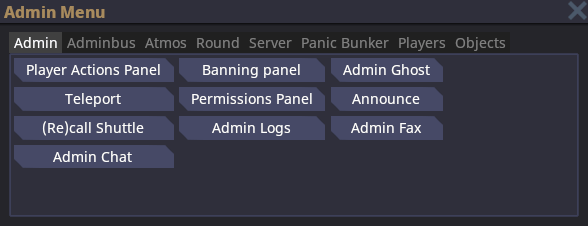
Verbs
Admin Verbs
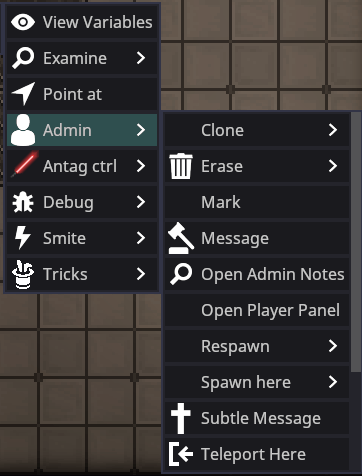
- Clone: Clones the targeted player’s current entity.
- Erase: Deletes the targeted player’s entity from the round. Useful for removing a character from a round entirely.
- Mark: Places an entity into the $marked variable, a list of entities, replacing its prior value. This can be used in tandem with other toolshed commands to replace the need to type entity IDs.
- Message: Opens the ahelp window targeted at the player.
- Open Admin Notes: Opens the user’s notes. You can also open a player’s notes by typing “adminnotes username” in the console.
- Open Player Panel: Opens a panel with the targeted player’s information, such as their username, and if they are whitelisted. The panel also includes their total playtime, notes, bans, role bans, and shared connections. The admin verbs are included in the Player Panel.
- Teleport Here/To: “Teleport Here” will teleport the targeted player to your current position. “Teleport To” will teleport you to the targeted player’s current position.
- Freeze stops them from moving or interacting until they are unfrozen by an admin.
Debug Verbs
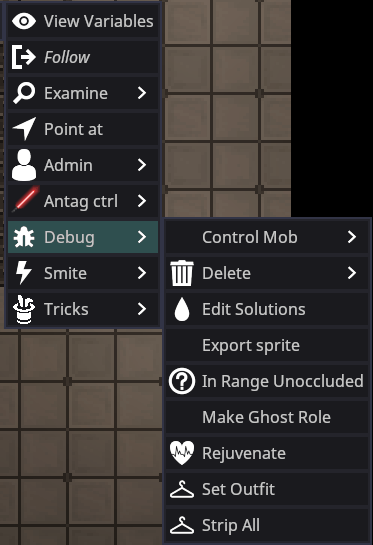
- Control Mob: Gives you control of the entity regardless of whether the entity is sentient or not.
- Delete: Deletes the entity. Requires you to confirm the deletion.
- Edit Solutions: Opens a panel that lists the current reagents in the entity. This includes reagents in their bloodstream or temporarily in their bloodstream. You can modify the solutions and reagents in the tab.
- Export Sprite: Exports the entity’s sprite. You can locate your exported sprites in the Space Station 14 folder location > data > Exports
- In Range Unoccluded: Checks to see if the targeted entity is occluded or not (if there’s a structure between either of you).
- Make Ghost Role: Makes an entity a Ghost role that dead players can request.
- Rejuvenate: Fully heals an entity, removes any temporary reagents in their body, and resets the entity’s temperature. Only use when necessary.
- Set Outfit: Opens a panel with preset outfits you can set a player to wear. Some outfits may include extra items. This verb is useful for running events or respawning players.
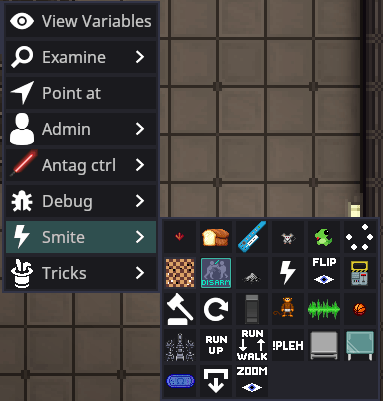
Smite Verbs
Admin Help
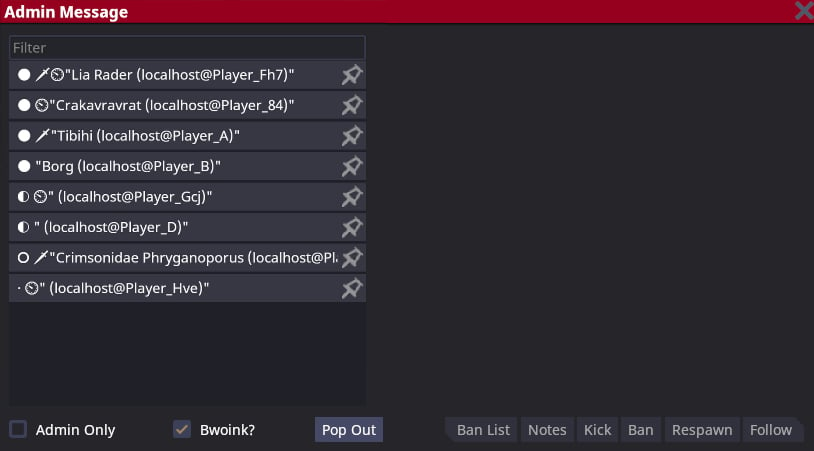
F1, by using the Player Actions Panel in the Admin Menu, or by using the Message admin verb.
Upon opening the Admin Help menu, you will see a tab that looks like the image above, but may contain a larger list of players who have logged into the server regardless of whether they are online or not. If the server restarts, the list will be reset.
Different icons may appear to the left of a player’s username.
Sword: The player is an antagonist.
White Circle: The player is online and playing in the current round.
Half-white Circle: The player is online and in the round, but currently idle.
Empty Circle: The player is offline.
- Admin Only: Checking the option will make your messages sent to a player’s ahelp only visible to other admins.
- Bwoink: Checking or unchecking the option enables or disables the ahelp message sound for the player. This does not apply whenever a normal player ahelps.
- Ban list: Opens a tab containing all of the player’s bans and information on the ban.
- Notes: Opens a tab containing any notes about the player, including their bans.
- Kick: Kicks the player from the server.
- Ban: Opens the Banning panel with the target’s username autofilled.
- Respawn: Sends the targeted player to the lobby. Does not delete their character.
- Follow: Makes you follow the targeted player.
Admin Logs
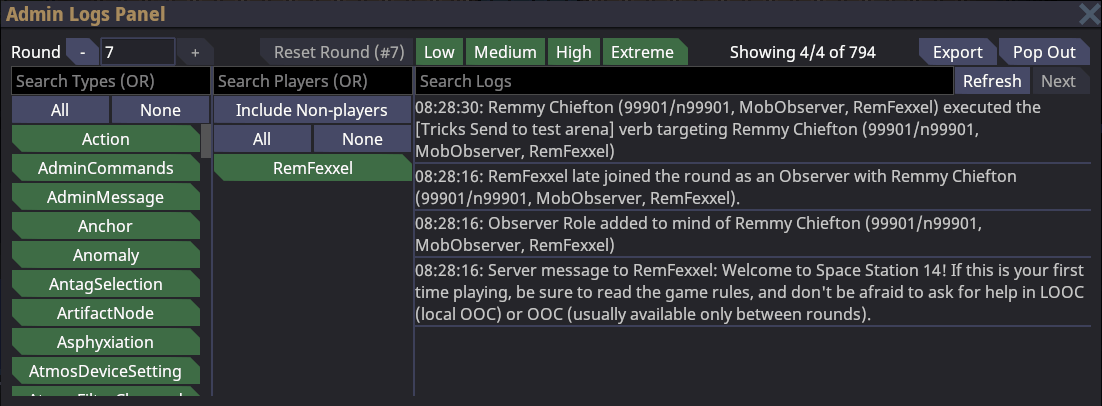
Admin Notes
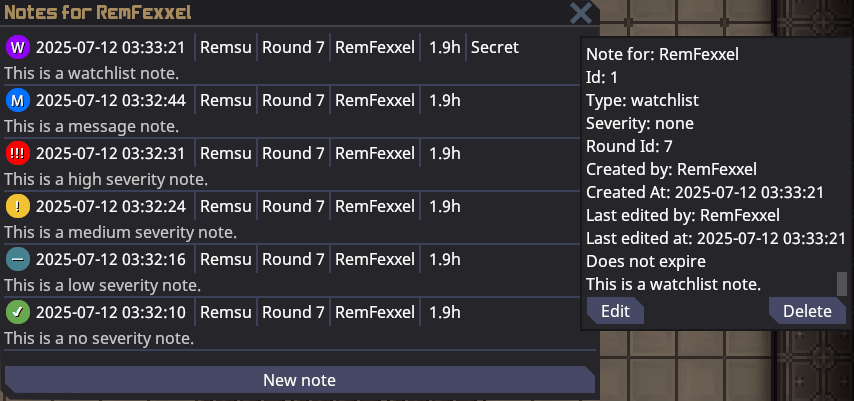
Admin verb category, at the bottom of the AHelp menu, or by typing “adminnotes username” in the console.
View Variables
View variables is a very, very useful tool that allows you to view all marked variables on every component that an entity has, as well as modify some. Useful for debugging, but also has great use for adminning as it allows you to add or remove arbitrary components, for exampleOwOAccent. Further explanation of how to use View variables (VV) is given below.
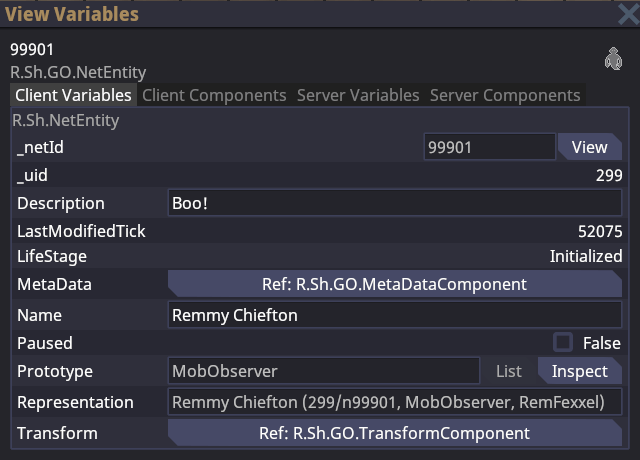
- An ‘entity’ is an object in game: walls, players, projectiles, items, etc. Each entity has a unique EntityUid corresponding to it, which is the number you see at the top left next to the entity’s name or when you right click them. In the example above, the entity’s ID is 99901.
- Each entity (generally) has a prototype ID, or the ‘type’ of entity it is. This is the
MobObserverstring you see at the top left. This is also found if you right click an entity. - Entities have components, which give some kind of behavior to the entity. The component for a ‘player-controlled’ entity is
ActorComponent, for a weapon it isMeleeWeaponComponent, for damageable objects it isDamageableComponent, etc. You can dynamically add and remove components whenever you want. - The game is separated into ‘client’ and ‘server’, with some shared stuff between them. Client is what’s running on your computer, server is what’s running on the game server.
VV Tips
- Press
enterafter modifying a variable to save its value. - Some variables may look non-modifiable, but there may be a modifiable version of them further down the list.
TransformComponentholds the entity’s position, rotation, etc.Grids(the station) are entities too, and their components can be changed- You can modify the
zoomon the client-sideEyeComponentto see further. MindComponentcontains information like antag roles, jobs, objectives, etc.- An entity’s name/description can be changed using
Server Variables, or on the server-sideMetaDataComponent.
Game Console
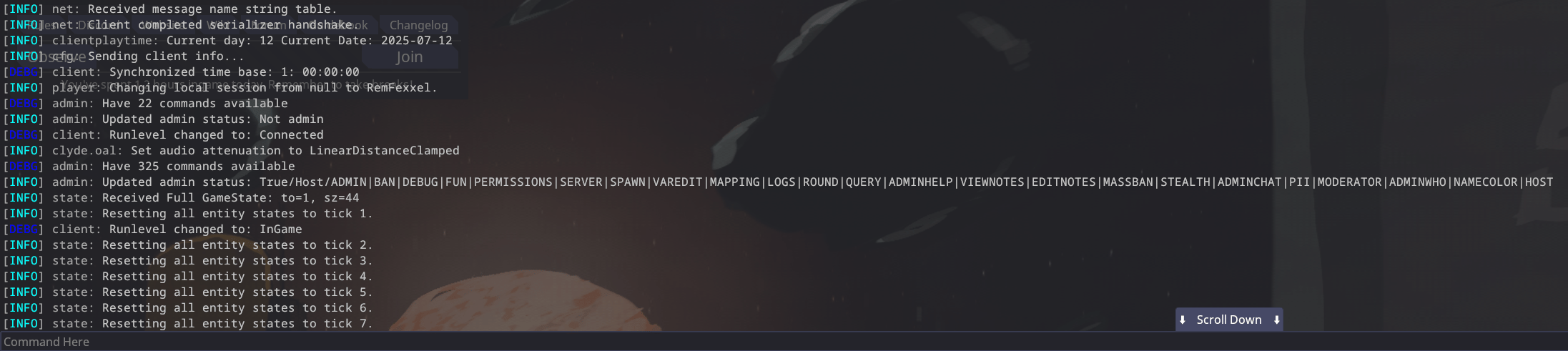
The console can be opened using the tilde
~ key, unless rebound. Any player can open it, but I’m just mentioning it here in case you were unaware of that fact. Commands can be run by typing the command and then the arguments, like any shell. Important client logs will show up here as well, so it’s useful for debugging.
Use the list command to list all available commands, and the help <command name> command to view instructions for the command.
Useful Commands
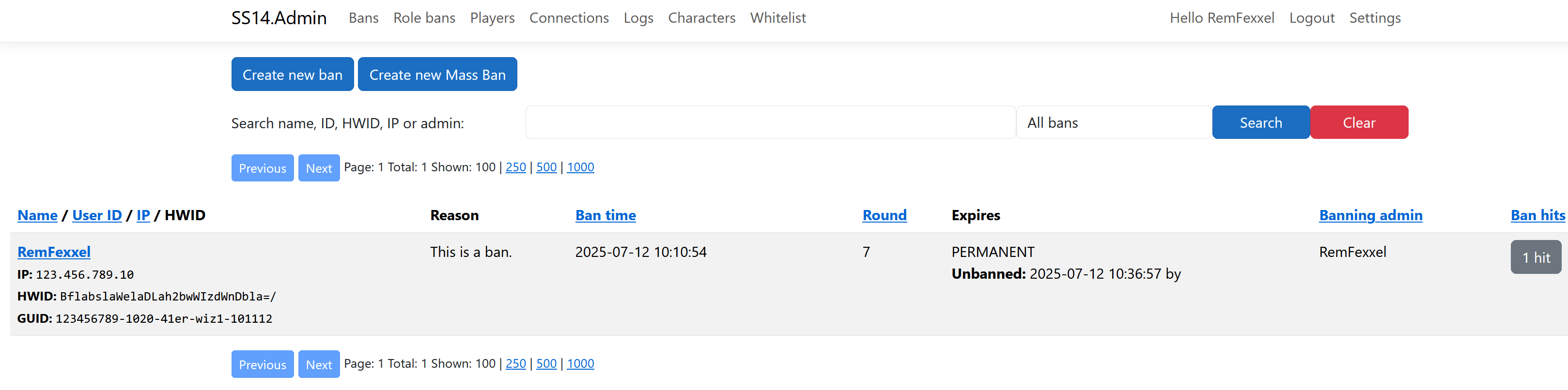
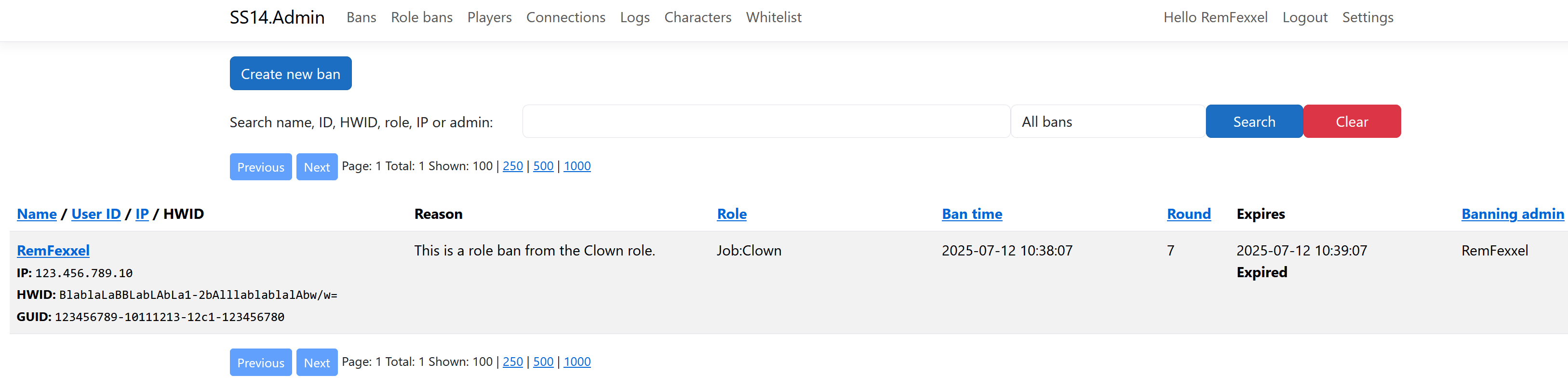
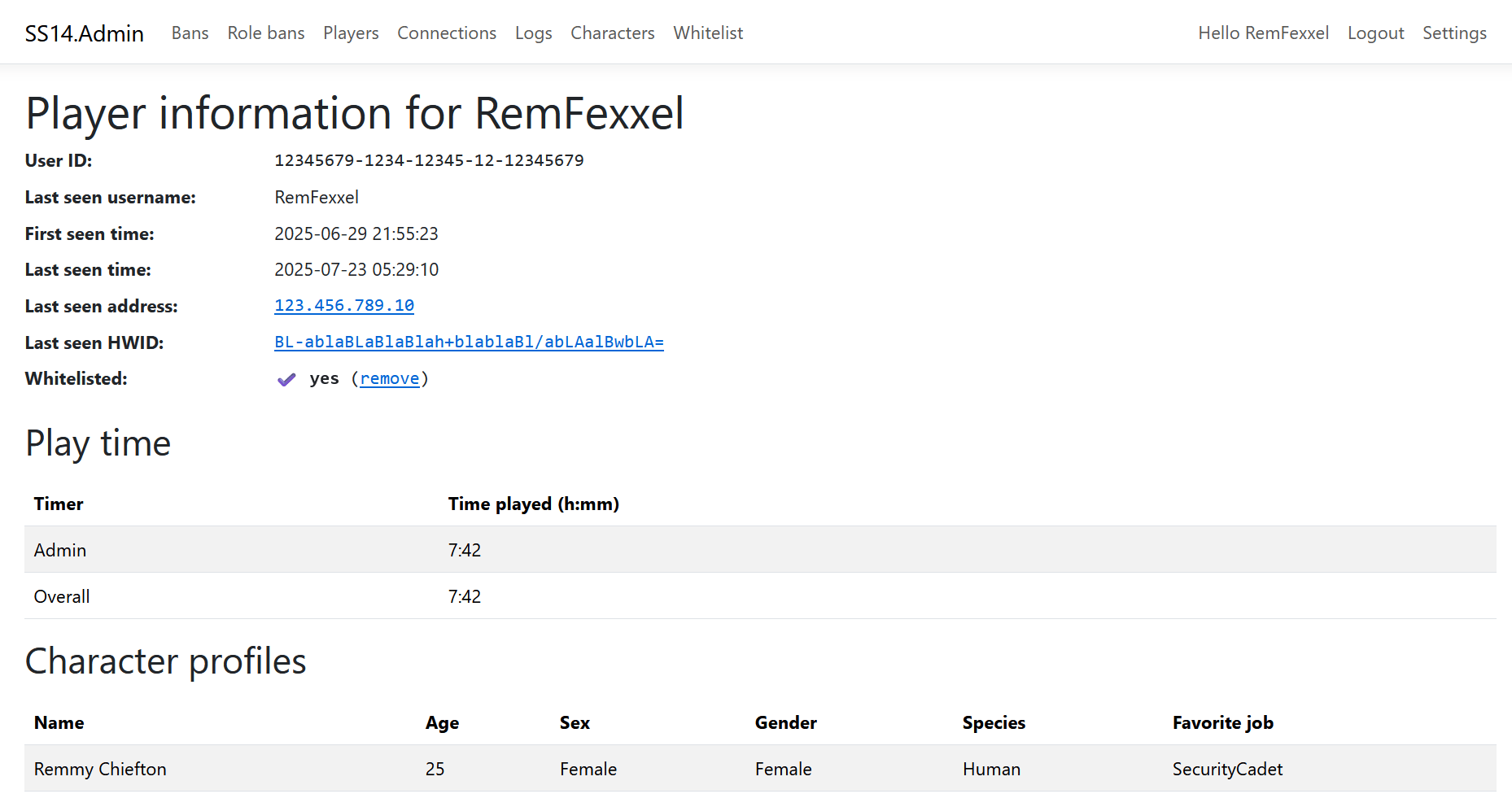
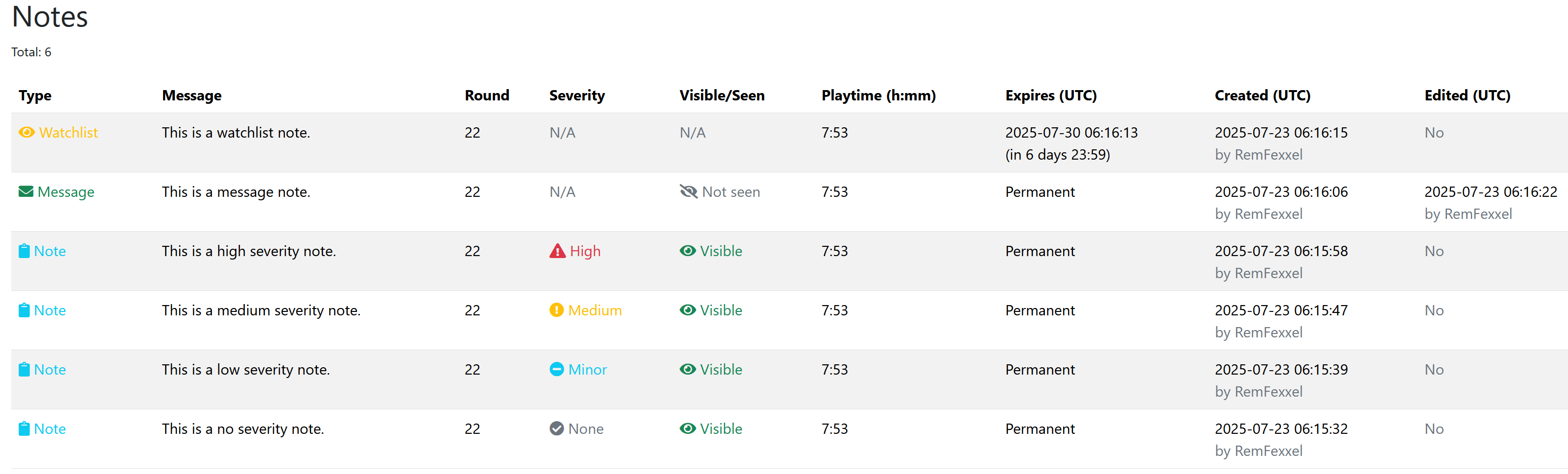
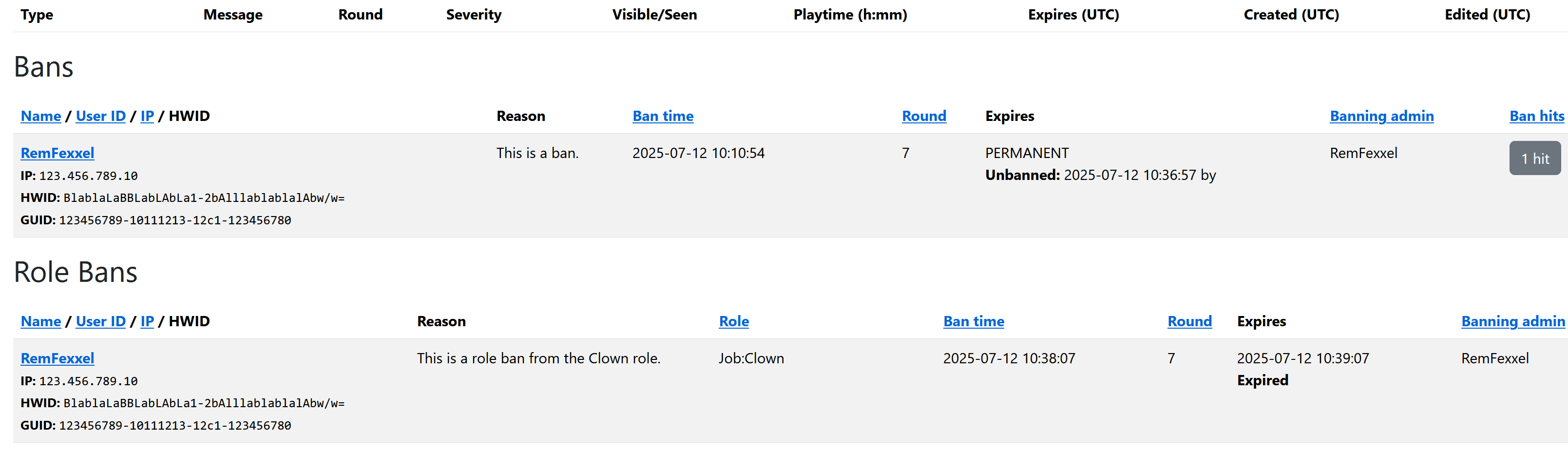
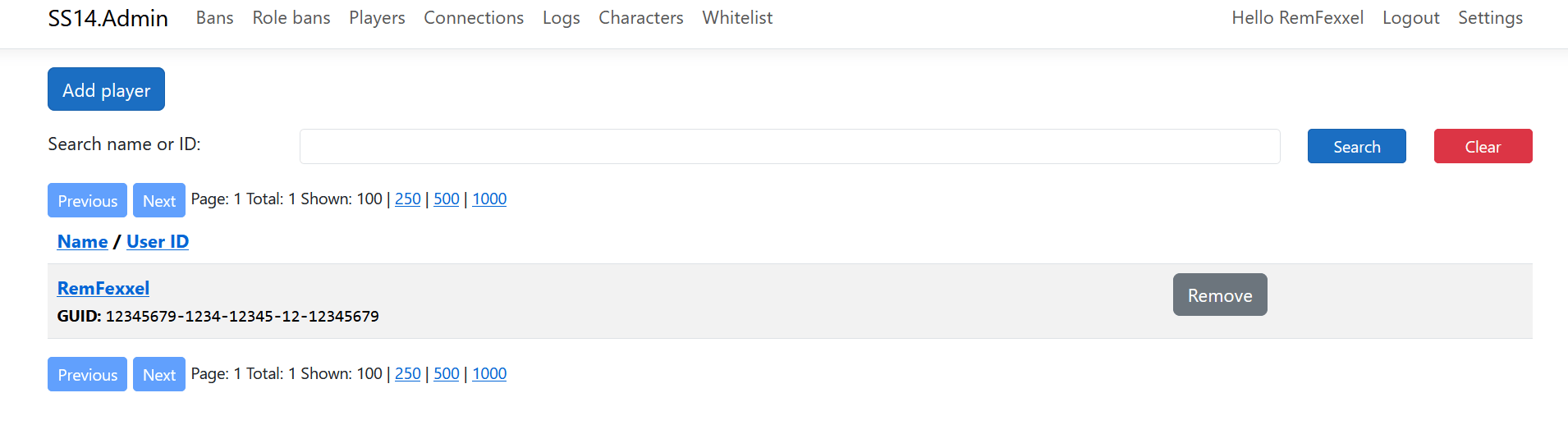
SS14.Admin





Admin Ghost
You can turn yourself into an aghost using the Admin Menu or by using theaghost command.
Admin ghosts are special observer entities that replace your ghost’s name with your username, have hands, can interact with any object ingame, and have all access. You also spawn with a Satchel of Holding and an Admin PDA.
You can return to your initial body whenever, as long as the body is still in the round.
Deadmin / Readmin
If you want to play the game normally, it’s recommended that you deadmin using thedeadmin command. If you want to perform admin duties again or need to use your powers in a certain situation, use the readmin command.